Crayons
A personal Crayola color tool I use for creative projects
Choosing a color palette for a design project can feel like a chaotic and unsystematic endeavor. Where do we even begin? Personally, I think visual discovery should be a quest – one that uncovers a good story. When a color palette has a narrative, it gives our design choices meaning, and that story becomes something we can share with clients when presenting our work.
Let me give you a couple of examples. On this author’s website we pulled colors from her book covers and named them after characters in her stories. In another project I created a logo for a friend’s business using a specific Austrian Red color to reflect the founder’s heritage. In both cases, the color choices weren’t just aesthetic – they had personal or narrative value.
Exploring Colors #
My own website did not have a good color story. So I went searching and found inspiration in Crayola crayons.
Over 200 colors1 have been produced by Crayola and they have great names. But how to explore them? I made a little website to display, sort, and filter the colors. It was an enjoyable build, and it turned into something I actually rely on. I’ll try not to bore you with too many technical details – plus, full disclosure, I built a lot of it with AI assistance.
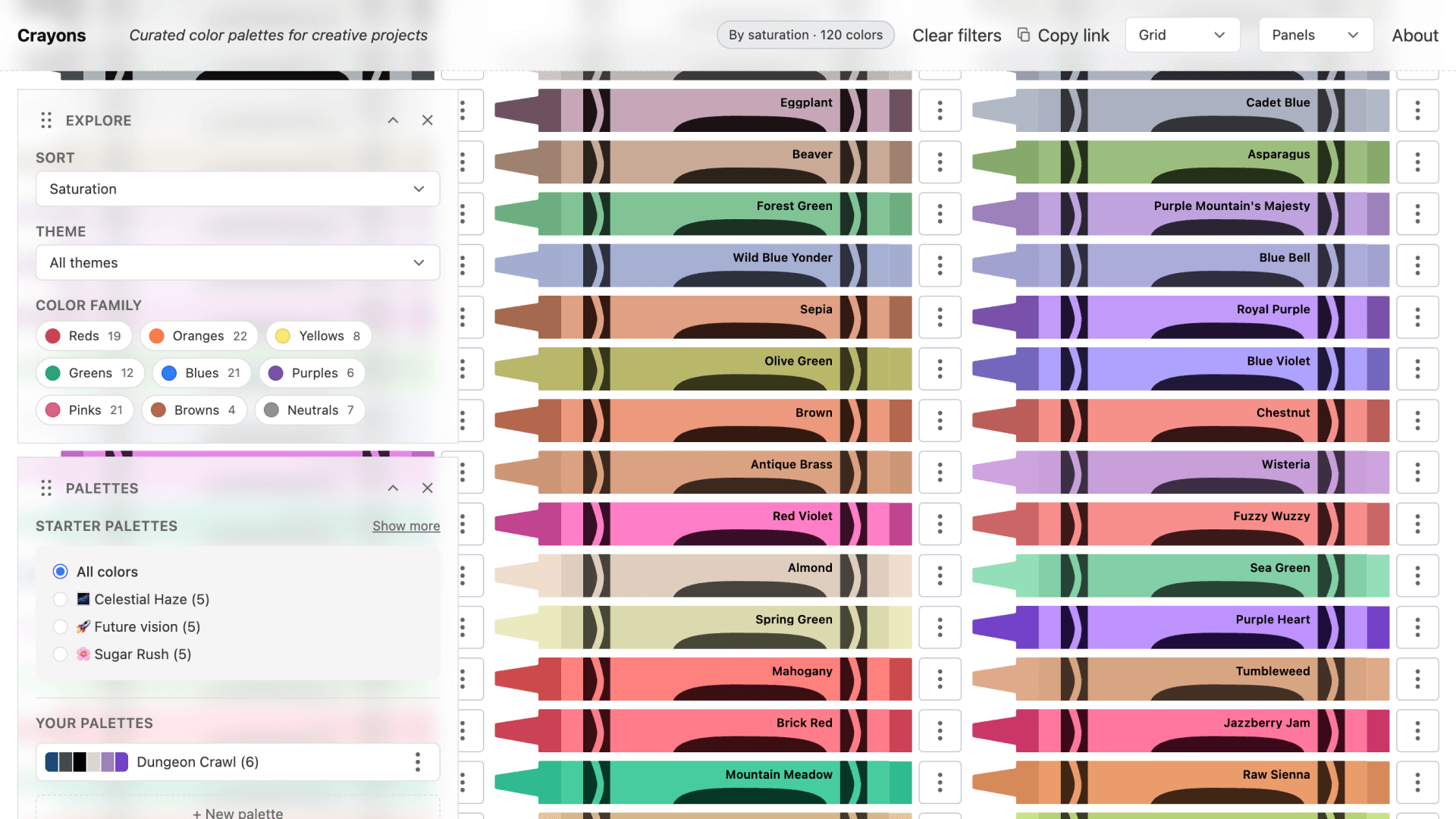
Eleventy was a natural choice for me – I know it well, and its global data file support made it easy to display the crayons. For the trickier parts, like filtering and sorting, I leaned on GitHub Copilot and later cursor. I still had to understand the code, debug what broke, and decide what stayed.

I’ve used AI tools in the past for small things, but this is the first time I’ve used them extensively. The filtering feature didn’t work right away, but Copilot helped me debug the JavaScript. It fixed some of the logic issues, and I handled a separate bug involving an incorrect ID reference. One thing the AI did perfectly? Converting the hex codes to RGB and HSL color formats. This allows for better results when sorting by hue, brightness, or saturation.
Of course, AI tools have their quirks. I noticed a few classic hallucinations: like referencing a crayon color that didn’t exist in the dataset, or mislabeling IDs. But that‘s the nature of working with large language models – you still need to keep an eye out.
I also experimented with using multiple AI models. I turned to ChatGPT to help generate color palettes based on names and hex values. This is where things got fun. LLMs are surprisingly good at creative associations, and together we came up with names like Mid-mod mood, Celestial haze, and Eldrich archives.
What it does now #
Since I first wrote about this project, Crayons has grown from a filterable color wall into a small studio tool:
- Build and refine custom palettes (and deselect colors when a combination isn’t quite right)
- Switch layout modes — including arc and pile views — and sort or shuffle by hue, saturation, brightness, and more
- Use a clearer header and filter status on small screens, so discovery still works on a phone
- Export an early palette MVP, which is the foundation for deeper app-specific formats
- Open an About dialog when you want the short version of what the tool is for
How I use it #
I don’t treat Crayons as a finished case-study artifact. I use it the way I used those YA-author book colors and that Austrian Red: to find a set of colors that mean something, then carry that story into a project. Sometimes that means hunting for a mood for my own site. Sometimes it means testing whether a palette holds up before I take it into Figma or a client conversation. The point is the same — narrative color, not random swatches.
Figma the Figma #

This project started by drawing vector shapes in Figma. It seems only right to continue exploring the Crayola colors in a Figma file I still return to. In the file you can find a series of variables imported from the same JSON file linked above. Not a native feature of Figma, variables take a little effort to migrate. Last I checked you have to use a plugin like Variables Pro to transfer in all the values into the file.
What’s next #
I’m still actively building on Crayons. Right now that means:
- Export for real apps — palette export for common tools like Adobe, Procreate, Figma, Blender, and similar
- Color ramps — generate ramps from any crayon color, with exports of those ramps too
- In action — apply any palette to an SVG illustration so you can see how the colors look in use, not just in a row of swatches
Crayons started as a curiosity project powered by crayon names, a dataset, and a little help from AI. It has become a personal color tool I keep improving — and that feels like the right ending for a case study that isn’t really finished.
References #
- [1] List of Crayola crayon colors from Wikipedia
- [2] List of Crayola crayon standard colors from Patrick Rodriguez